Windows presentation foundation (WPF) presents a unique paradigm that enables designers and developers to work independently and later on merge the work. This is facilitated by XAML (read more about XAML here) and the usual code behind file. WPF has a separate architecture (details here), that needs to be understood before diving into the fancy terms like dependency properties, Bindings etc.
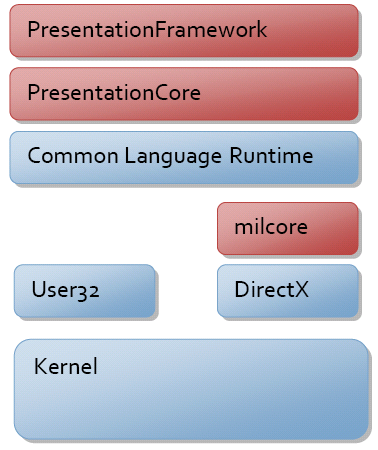
Let us start with a quick review of Architecture.PresentationCore and Presentation Framework is the two main components that do most of the work in WPF. The Diagram below, depicts the complete architecture(This has been taken from MSDN)

There are three dlls which makes the Windows Presentation Foundation, that is WindowsBase (WindowsBase.dll), PresentationCore (PresentationCore.dll), and PresentationFoundation (PresentationFoundation.dll).
First WPF component is milcore. MIL stands for Media Integration Layer. MIL is interface between DirectX and CLR (plus above layer). MILCORE is unmanaged component which handles the 2D, 3D , Animation with the help of DirectX. WPF uses MILCORE for rendering purpose. MILCORE is also known as composition engine.
WindowsBase defines most of the Base type which are used in WPF. Hence for any WPF Application, WindowsBase library is must be a part of the solution. Second component is PresentationCore (PresentationCore.dll). This DLL doesn’t hold any UI component but it contains the base types which can be used in implementing the UI component .
PresentationFoundation contains all the WPF controls and manages other useful WPF functionality. This provides the presentation on the screen.
After architecture, following are the concepts that need to be understood for getting a good grasp of WPF
Layout System
These are the five most popular layout panels of WPF:
As found in most of the cases in my blogs, I prefer digesting the newly acquired knowledge, so take some time and explore the Architecture and Layout. The remaining topics would be covered in the upcoming Post.
Till Next we connect…….
Happy Learning!
Let us start with a quick review of Architecture.PresentationCore and Presentation Framework is the two main components that do most of the work in WPF. The Diagram below, depicts the complete architecture(This has been taken from MSDN)
There are three dlls which makes the Windows Presentation Foundation, that is WindowsBase (WindowsBase.dll), PresentationCore (PresentationCore.dll), and PresentationFoundation (PresentationFoundation.dll).
First WPF component is milcore. MIL stands for Media Integration Layer. MIL is interface between DirectX and CLR (plus above layer). MILCORE is unmanaged component which handles the 2D, 3D , Animation with the help of DirectX. WPF uses MILCORE for rendering purpose. MILCORE is also known as composition engine.
WindowsBase defines most of the Base type which are used in WPF. Hence for any WPF Application, WindowsBase library is must be a part of the solution. Second component is PresentationCore (PresentationCore.dll). This DLL doesn’t hold any UI component but it contains the base types which can be used in implementing the UI component .
PresentationFoundation contains all the WPF controls and manages other useful WPF functionality. This provides the presentation on the screen.
After architecture, following are the concepts that need to be understood for getting a good grasp of WPF
- Layout System
- Dependency Properties
- Routed Events
- Data Binding
Layout System
These are the five most popular layout panels of WPF:
| Grid Panel | The grid is a layout panel that arranges its child controls in a tabular structure of rows and columns. Its functionality is similar to the HTML table but more flexible. A cell can contain multiple controls; they can span over multiple cells and even overlap themselves. The resize behavior of the controls is defined by the HorizontalAlignment and VerticalAlignment properties who define the anchors. The distance between the anchor and the grid line is specified by the margin of the control |
| Stack Panel | The StackPanel in WPF is a simple and useful layout panel. It stacks its child elements below or beside each other, depending on its orientation. This is very useful to create any kinds of lists <StackPanel> <TextBlock Margin="10" FontSize="20">How do you like your coffee?</TextBlock> <Button Margin="10">Black</Button> <Button Margin="10">With milk</Button> <Button Margin="10">Latte</Button> <Button Margin="10">Cappuccino</Button> </StackPanel> |
| Dock Panel | The dock panel is a layout panel, that provides an easy docking of elements to the left, right, top, bottom or center of the panel. The dock side of an element is defined by the attached property DockPanel.Dock. To dock an element to the center of the panel, it must be the last child of the panel and the LastChildFill property must be set to true<DockPanel LastChildFill="True"> |
| Wrap Panel | The wrap panel is similar to the stackPanel but it does not just stack all child elements to one row, it wraps them to new lines if no space is left. The Orientation can be set to Horizontal or Vertical. The WrapPanel can be used to arrange tabs of a tab control, menu items in a toolbar or items in an Windows Explorer like list <WrapPanel Orientation="Horizontal"> |
| Canvas Panel | The Canvas is the most basic layout panel in WPF. Its child elements are positioned by explicit coordinates. The coordinates can be specified relative to any side of the panel using the Canvas.Left, Canvas.Top, Canvas.Bottom and Canvas.Right attached properties. The panel is typically used to group 2D graphic elements together and not to layout user interface elements. This is important because specifying absolute coordinates brings you in trouble when you begin to resize, scale or localize your application. <Canvas> |
As found in most of the cases in my blogs, I prefer digesting the newly acquired knowledge, so take some time and explore the Architecture and Layout. The remaining topics would be covered in the upcoming Post.
Till Next we connect…….
Happy Learning!
Comments
Post a Comment